

A Step-by-Step Guide (With Video Tutorials)
Is your laptop dying faster than your phone on a busy day? Do you find yourself constantly hunting for power outlets? If so, it might be time for a battery replacement. Don’t worry—you don’t need to be a tech wizard to do this! Swapping out your laptop battery is one of the most common and rewarding DIY repairs.
In this guide, I’ll walk you through the general process, important safety tips, and link to some helpful video tutorials for specific laptop models.
Why Replace Your Laptop Battery?
Over time, laptop batteries lose their ability to hold a charge. If you’re getting only an hour or two of usage when you used to get six, a new battery can feel like a brand-new machine. It’s cost-effective, reduces e-waste, and extends your laptop’s life.
⚠️ SAFETY FIRST: Crucial Precautions
- Power Down & Unplug: Turn off your laptop and unplug it from the charger.
- Ground Yourself: Touch a metal part of the laptop’s chassis to discharge static electricity, which can damage internal components.
- Work in a Clean, Well-Lit Area: Use a non-conductive surface like a wood table.
- Use the Right Tools: Usually a small Phillips-head screwdriver is all you need.
- Handle the Old Battery Carefully: Don’t puncture, bend, or expose it to extreme heat.
General Step-by-Step Process
Step 1: Identify Your Battery Type & Buy a Replacement
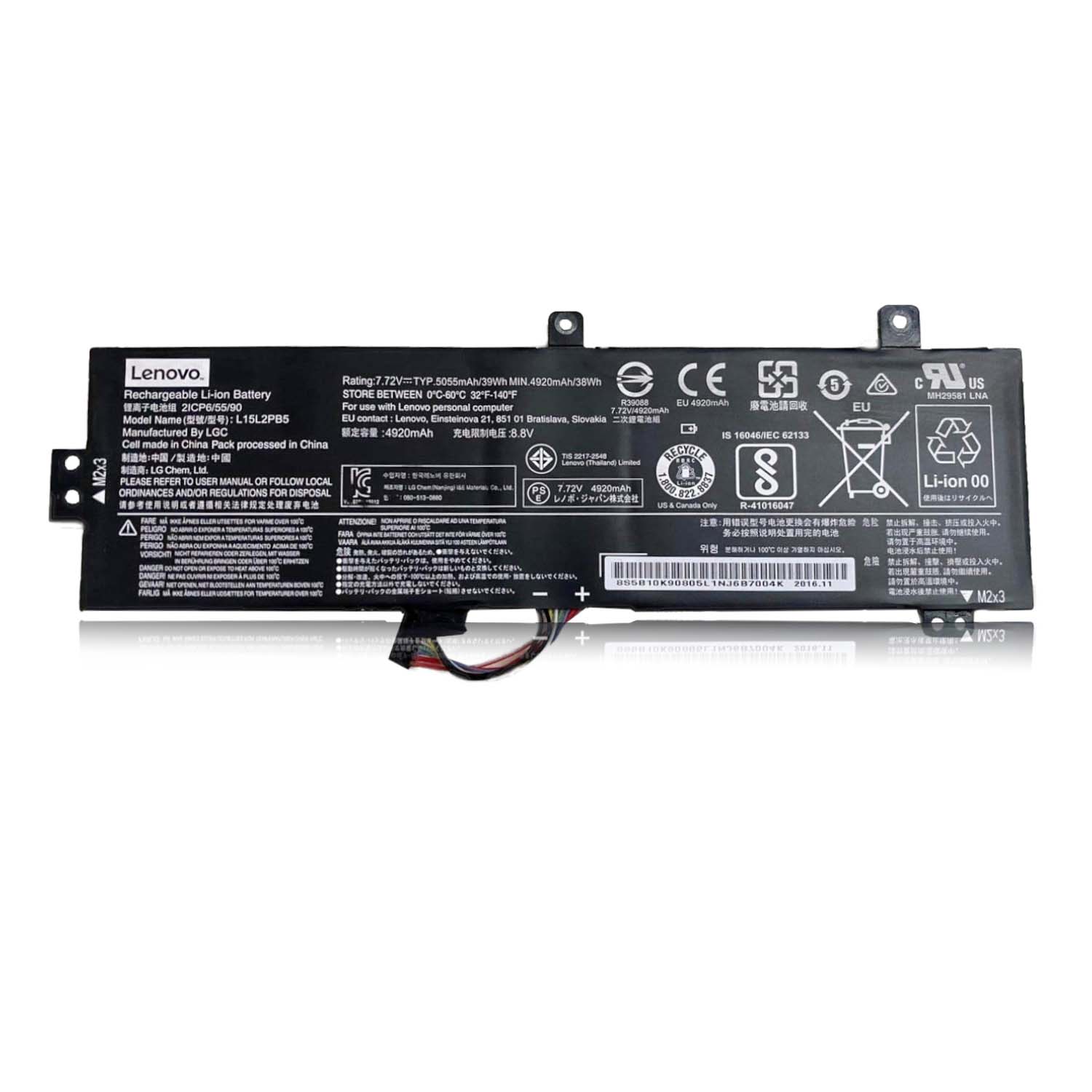
- Check if it’s User-Replaceable: Many modern laptops have sealed batteries, but many still have removable ones.
- Find the Correct Part: Look on the bottom of your laptop for a model number (e.g., “Dell XPS 15 9500,” “HP Pavilion 15-cs3000”). Search online for “[Your Laptop Model] battery replacement” to buy an OEM or reputable third-party battery.
Step 2: Access the Battery
- Removable Battery (Older Models): Look for a latch or release switch on the bottom. Slide it to release the battery.
- Internal Battery (Most Modern Laptops): You’ll need to remove the bottom panel. Unscrew all the screws (keep them organized!). Some panels may have clips, so use a plastic prying tool to gently lift the edges.
Step 3: Remove the Old Battery
- Disconnect the Connector: The battery will be connected to the motherboard by a cable. Gently disconnect it by pulling the connector straight up or to the side. Never pull on the wires themselves.
- Unscrew/Unstick: The battery may be held in place with screws or strong adhesive. Remove screws carefully. If it’s glued, you may need to gently use a plastic card or spudger to pry it loose. Go slow.
Step 4: Install the New Battery
- Place the New Battery: Position the new battery in the compartment.
- Reconnect: Plug the battery cable firmly into the motherboard connector.
- Secure It: Replace any screws or brackets that hold the battery down.
Step 5: Reassemble and Test
- Replace the Bottom Panel: Carefully snap and/or screw the panel back on.
- Initial Charge: Plug in your charger (without turning it on) for at least an hour to give the new battery a good initial charge.
- Power On & Calibrate: Turn on your laptop. For best performance, let it charge to 100%, then use it on battery until it shuts down (or reaches 5-10%). Charge it back to 100% uninterrupted. This helps calibrate the battery meter.
Helpful Video Tutorials
Seeing the process is always better. Here are a few excellent, detailed videos for popular laptop models:
- Generic Guide for Many Laptops (Ifixit)
- This is a fantastic, clear overview of the general process for laptops with internal batteries.
- How to Replace a Laptop Battery – iFixit Repair Guide
- Dell XPS 15 (9500/9510) Specific
- A detailed, professional teardown showing the exact steps for this popular model.
- Dell XPS 15 9500 Battery Replacement
- HP Pavilion / HP Laptop General
- This video covers a common HP design where you remove the bottom panel.
- HP Pavilion 15 Battery Replacement
- Apple MacBook Pro (A1708 2017-2020)
- Replacing a MacBook battery is more complex due to adhesive. This guide is essential.
- MacBook Pro 13″ A1708 Battery Replacement
Pro Tip: Always search YouTube for “[Your Exact Laptop Model] battery replacement” to find the most accurate guide for your machine.
When to Seek Professional Help
- If your laptop’s battery is soldered to the motherboard.
- If you encounter a lot of strong adhesive and don’t feel comfortable.
- If the disassembly process seems too complex (some laptops require removing the keyboard first!).
Replacing your laptop battery is a satisfying project that can save you money and give your trusted device a new lease on life. With the right part, the right tools, and a little patience, you’ve got this!
Have you replaced your laptop battery before? Share your tips or questions in the comments below!