
7 Signs It’s Time for a Replacement
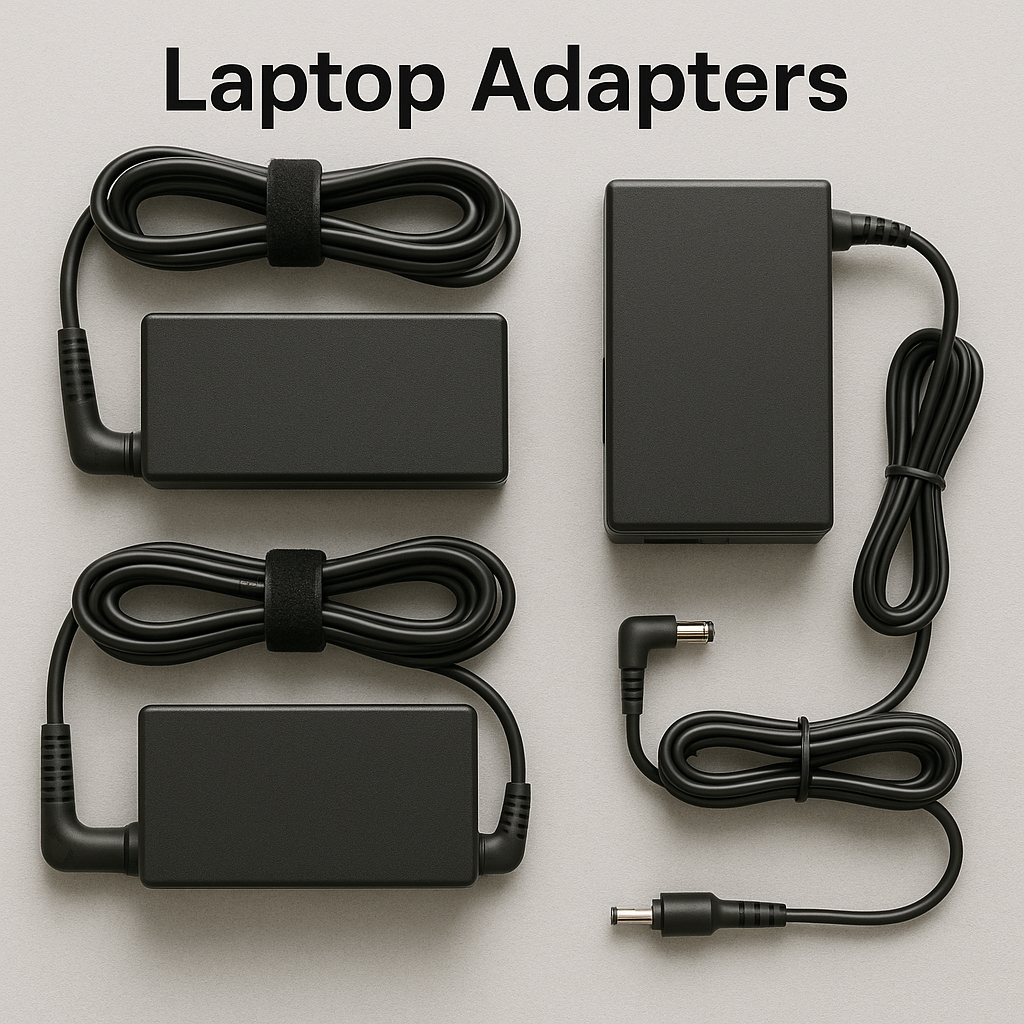
Your laptop charger is the unsung hero of your daily workflow—until it stops working. Suddenly, that reliable power source becomes a source of frustration, unreliable performance, or even safety concerns. But how do you know when to replace it before it fails completely?
In this guide, I’ll walk you through the telltale signs your charger needs replacing, plus tips for choosing the right replacement.
⚠️ The Obvious Red Flags: When Replacement is Non-Negotiable
1. Physical Damage is Visible
- Frayed or exposed wires near the adapter or connector
- Bent or loose charging pins that won’t stay connected
- Cracks in the adapter casing or melted/discolored plastic
- Burn marks or unusual smells when plugged in
Safety First: If you see any of these signs, stop using the charger immediately. Damaged chargers can pose fire hazards or damage your laptop’s internal components.
2. Intermittent Charging or Connection Issues
- The charging indicator flickers on and off
- You have to position the cable “just right” to get contact
- Charging stops if the cable moves slightly
This often indicates worn internal wiring or connector damage that will only worsen.
3. Your Laptop Isn’t Charging at All
Before panicking:
- Test the wall outlet with another device
- Try a different power cable if your charger has a removable cord
- Check for debris in your laptop’s charging port
If other chargers work with your laptop but yours doesn’t, the charger has failed.
🔍 The Subtle Warning Signs: Early Detection Saves Money
4. Slower-Than-Usual Charging
If your laptop used to charge fully in 2 hours but now takes 4+, your charger may be delivering insufficient power. This can also cause your laptop to lose charge while plugged in during heavy use.
5. The Adapter Gets Unusually Hot
While some warmth is normal, excessive heat (too hot to touch comfortably) indicates inefficiency or impending failure. Modern chargers should remain relatively cool during operation.
6. Buzzing, Humming, or Crackling Sounds
Any audible electrical noise from your charger is abnormal. These sounds can indicate transformer issues, capacitor problems, or loose components.
7. You’re Using an Incompatible Charger
Using a charger with:
- Wrong voltage (can cause immediate damage)
- Insufficient amperage (causes slow charging or battery drain during use)
- Wrong connector size (even if it fits loosely, it can damage the port)
🔧 Quick Diagnostic Checklist
Before buying a new charger:
- ✅ Test with a known-good charger if possible
- ✅ Inspect your laptop’s charging port for damage or debris
- ✅ Check if the issue follows the charger or the laptop
- ✅ Verify your charger’s specifications match your laptop’s requirements
🛒 Choosing the Right Replacement Charger
Match Specifications Exactly
Look for:
- Voltage (V): Must match exactly (e.g., 19.5V)
- Amperage (A): Can be equal or higher than original
- Wattage (W): Voltage × Amperage (higher is usually safe if voltage matches)
- Connector size and polarity: Must be identical
Quality Matters: OEM vs. Third-Party
- OEM Chargers: Made by your laptop manufacturer. Guaranteed compatibility but often more expensive.
- Reputable Third-Party Brands: Look for UL certification, good reviews, and warranty coverage.
- Avoid No-Name Brands: Cheap chargers often lack proper safety features and can damage your laptop.
Consider Upgrading
- USB-C PD Chargers: If your laptop supports USB-C charging, consider a versatile GaN charger that can power multiple devices
- Higher Wattage Options: If available for your model, can support faster charging
- Longer Cables: Quality extension cables can improve flexibility without sacrificing power delivery
🔌 Pro Tips for Charger Longevity
- Don’t Wrap Cables Tightly – Loosen coils to prevent internal wire damage
- Pull from the Plug, Not the Cable – Prevents connector strain
- Keep Away from Heat Sources – Prolongs capacitor and component life
- Use a Surge Protector – Protects against voltage spikes
- Store Properly – Avoid bending or crushing in bags
📹 Helpful Video Resources
- How to Identify Laptop Charger Specifications
- Testing Your Charger with a Multimeter
- Universal Charger Safety & Compatibility Guide
🚨 When to Seek Professional Help
Consult a technician if:
- Your laptop has multiple charger failures (could indicate internal issues)
- The charging port feels loose or damaged
- You notice sparks when connecting the charger
- You’re unsure about compatibility
The Bottom Line
Your laptop charger is more than just a power cable—it’s a critical component affecting your device’s safety, battery health, and reliability. Don’t ignore the warning signs, and never compromise on quality when replacing it.
Have charger questions or replacement experiences to share? Drop them in the comments below!
Next week: How to properly dispose of or recycle old electronics safely.
Disclaimer: Always consult your laptop’s manual and manufacturer guidelines for specific charging requirements. When in doubt, choose OEM replacement parts or consult with a qualified technician.